Employee Management is now available in the Manager Panel - learn more here.
HR Panel Employee Management
Use the HR Panel to search for current employees, add new employees, activate/deactivate accounts, and more.
To navigate to the HR Panel, you will select your profile in the upper right corner of your page, and choose HR Panel from the drop down menu.
How do I add new employees?
- To register a new employee, go to the ‘Employees’ page in the HR Panel, and select Manage.
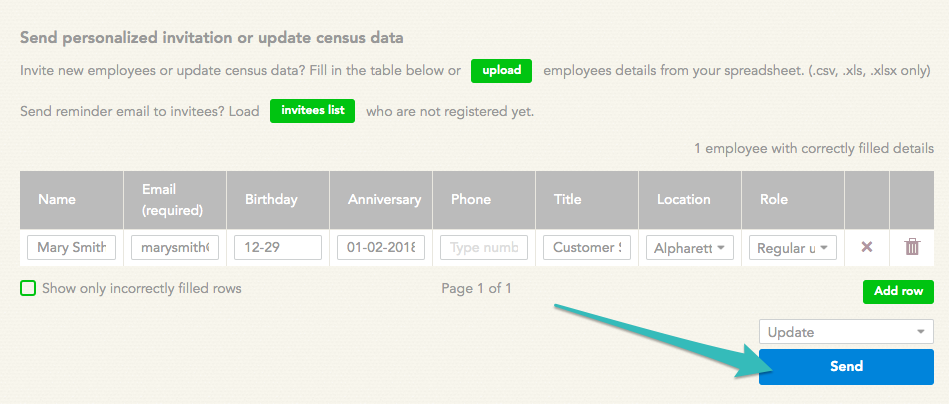
- Choose an option from the dropdown menu. There are 4 standard options:
- Register* creates a new account for the user(s) and sends a invitation notification email. (*Best practice for new account creation!)
- Update modifies the existing user data (such as name, structure tags, work anniversary, etc.) for the user (s).
- Reactivate reinstates an existing account that is currently deactivated. You will not be able to use the 'Register' option for email address that are currently attached to deactivated users, you must Reactivate their deactivated account.
- Deactivate revokes account access for the user(s).
- You can upload the employee information from a spreadsheet, or enter employee information manually by filling in the table.
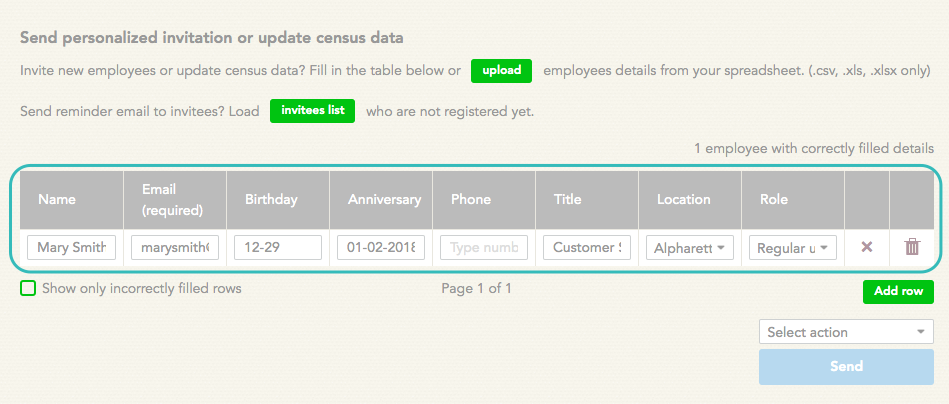
- After entering the employee’s information, click 'Send'!
How do I deactivate an employee’s account?
If an employee has left your company, you can use the Employees page to deactivate theirf account.
Simply use the Search tool to find the employee, then click ‘Deactivate’ to deactivate the user's account.
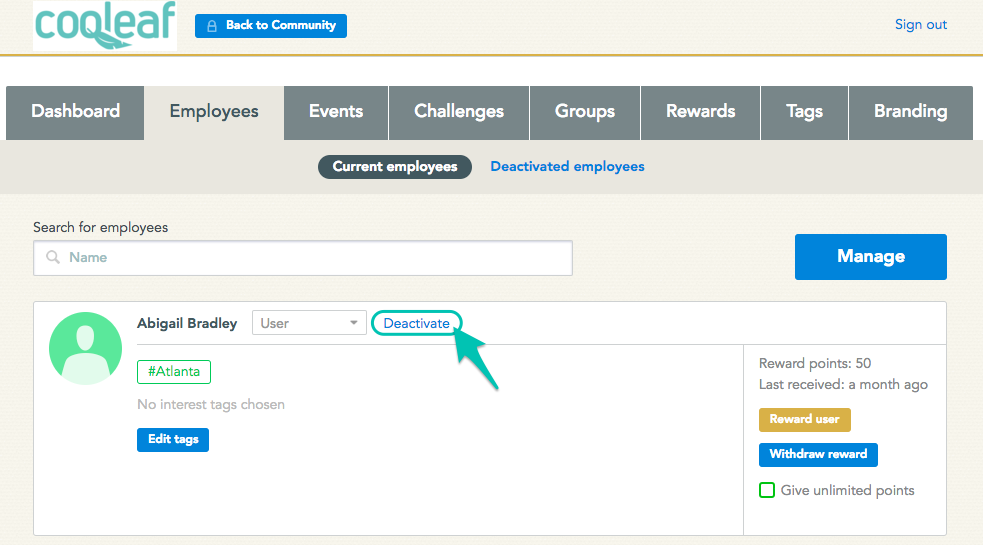
Once the account has been deactivated, the user will be moved from the list of 'Current employees' to the list of ‘Deactivated employees.’ They will no longer receive any account-related communications.
How do I reactivate an employee’s account?
You can reactivate a deactivated account at any time!
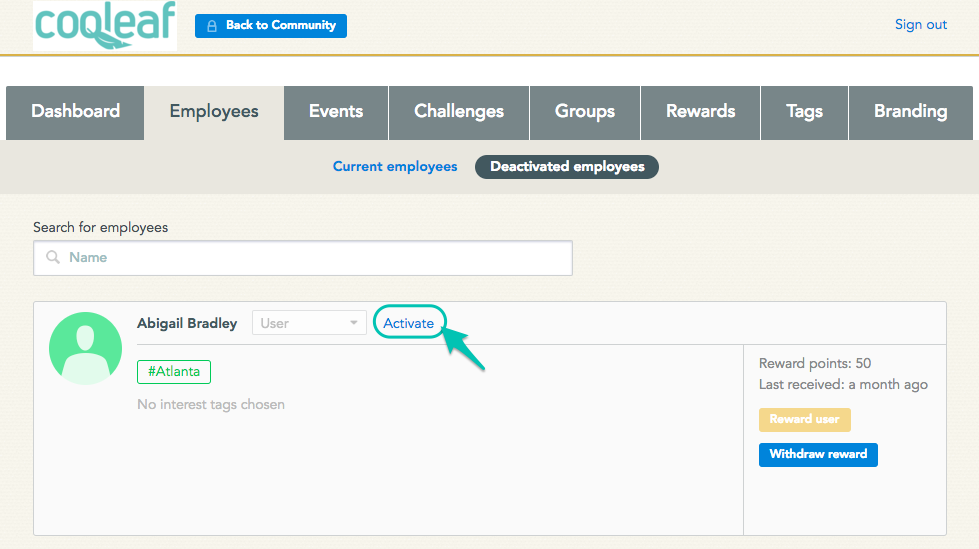
- From the Employees page in Manage view, click on the list of 'Deactivated employees'.
- Use the Search tool to find the employee.
- Click ‘Activate’ to reactivate this user's account.
How can I edit an employee's email address?
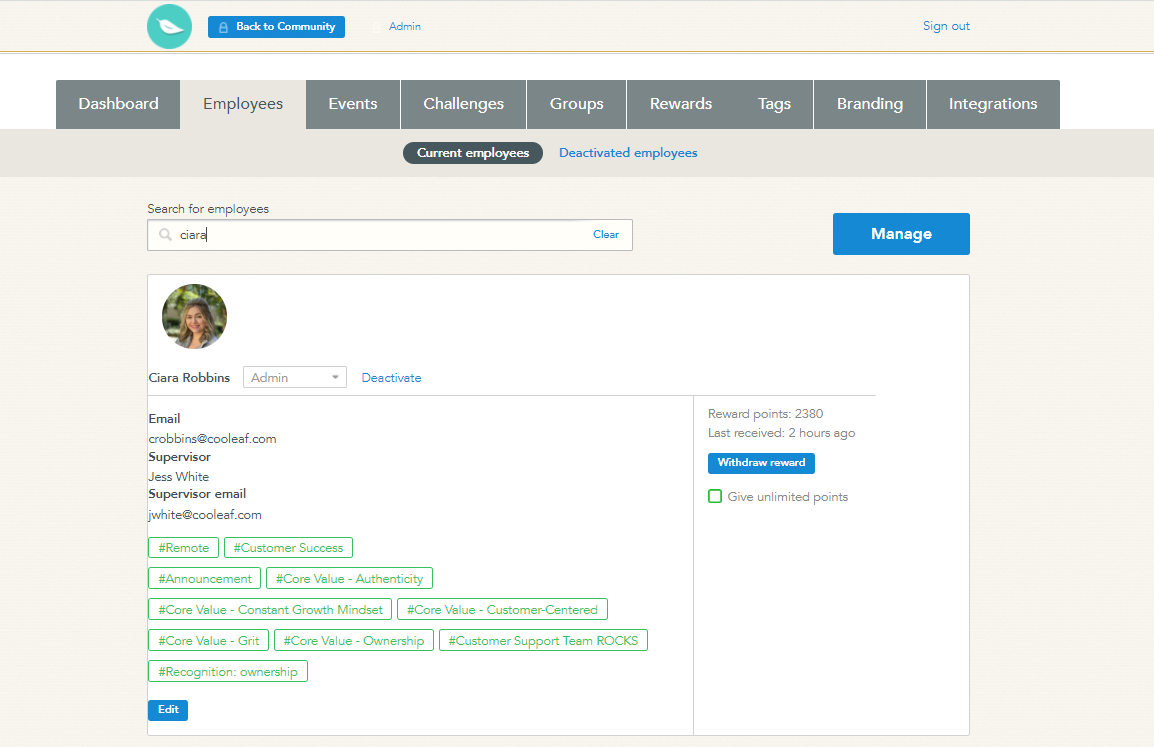
You can change an employee's email address in the HR Panel at any time!
- Select HR Panel.
- Select employees.
- Search employee by name or current email.
- Select edit.
- Copy email in the email field.
- Select save.
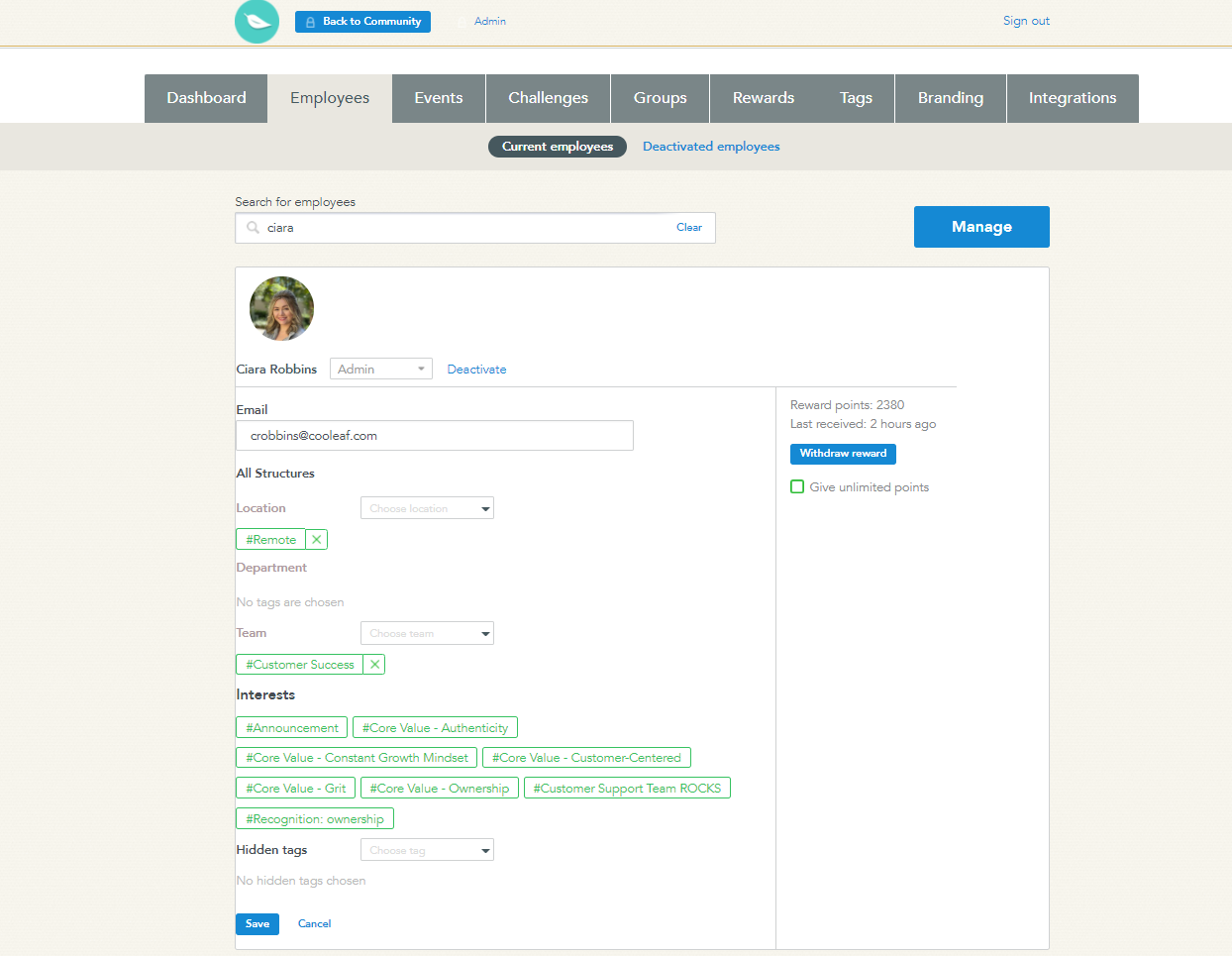
- If you selected save and didnt see a change, just refresh your page. Most likely it updated, but your cache did not.
- Organizations that utilize SSO will need to confirm with their IT that the emails have been changed in their SSO system before also changing the email in Cooleaf.
- If you are unable to save the update, check to see if the email you are trying to use is currently attached to a deactivated user.
How can I withdraw reward points that have been given to an employee?
You may wish to withdraw reward points from an employee in special cases, such as when an employee was incorrectly awarded reward points.
To withdraw reward points, use the Search tool to find the employee, then click the blue button that says ‘Withdraw reward.’
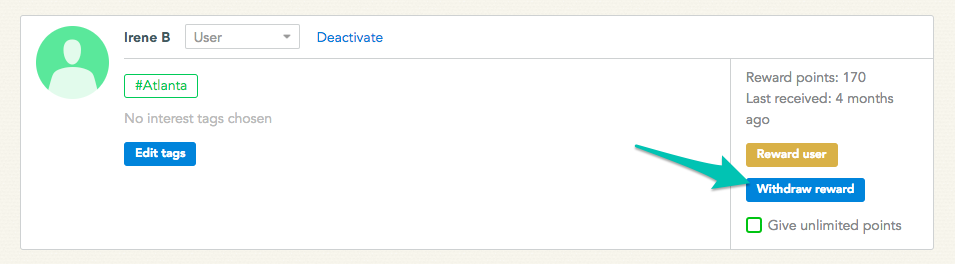
Enter the number of reward points you wish to withdraw, along with the reason for the withdrawal. Then, click ‘Withdraw points.’
How can I change an employee’s location or department?
To modify an employee’s structure tags, use the Search tool to find the employee, then click the blue button that says ‘Edit.’
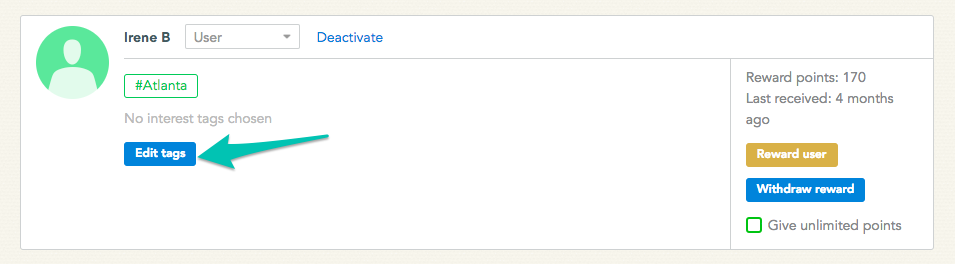
Make any changes to the employee’s structure tags and click ‘Save.’
How do I update/add employee information via the "Manage button"?
The 'Manage' button allows you to update any field of information for an existing user or add a new user. The 'Manage' button is useful when you have multiple updates that need to be made or multiple users that need to be added/removed.
To edit multiple active employees' information, you can upload a spreadsheet of the information that you want to update.
- Create a spreadsheet - the columns must match exactly what is listed in your HR panel. (example shown below). Enter the email address of the user, then the information that you are updating.

- Then, upload the spreadsheet and select the 'update' action. Click 'Send'.